A call flow decides what happens when someone calls one of your numbers: who rings, what the caller hears, and what happens when nobody answers. You build it on a canvas by connecting steps, called components.
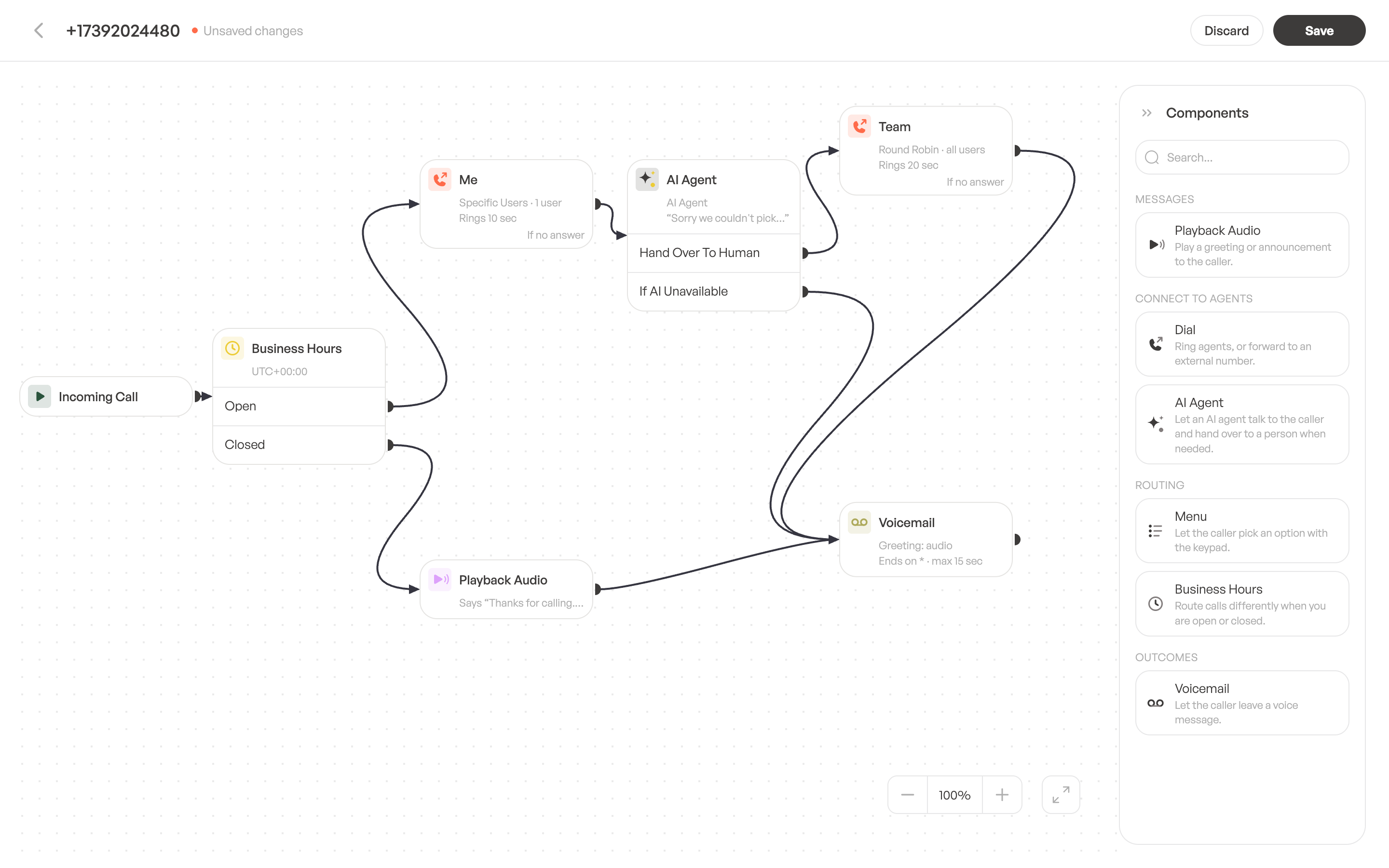
The example above never lets a call go unanswered. During business hours the call rings you first. If you don’t pick up, an AI agent answers and hands the caller over to the team when they need a person. If the AI is unavailable or the team doesn’t answer, the caller can leave a voicemail. Outside business hours, a short message plays and the caller goes to voicemail.
Before you start
- Each phone number has its own call flow.
- Call flows are edited from Phone Numbers, which the workspace Owner, Admins and Supervisors can open.
- To ring people in your workspace, link them to the number first. See Assign phone numbers to users.
Open the call flow editor
- In the sidebar, click Phone Numbers.
- In the Call Flow column, click + Configure next to the number.
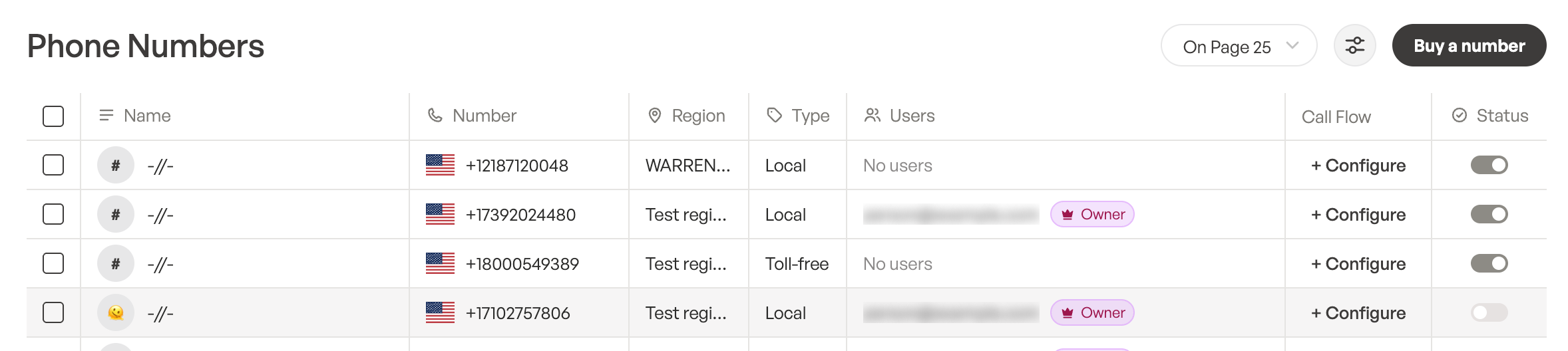
The editor opens with Incoming Call on the canvas. Every call starts there, and it can’t be deleted.
Add and connect steps
- In the Components panel on the right, click a component, or drag it onto the canvas.
- Drag from the small point on the right edge of a step to the step callers should reach next.
- Click a step to open its settings. To rename it, click its name at the top of the panel.
Drag steps to arrange them, and use − and + below the canvas to zoom. To remove a step or a connection, select it and press Backspace, or click the delete icon in the step’s settings.
The components
- Playback Audio: play a greeting or announcement to the caller.
- Dial: ring agents, or forward to an external number.
- AI Agent: let an AI agent talk to the caller and hand over to a person when needed.
- Menu: let the caller pick an option with the keypad.
- Business Hours: route calls differently when you are open or closed.
- Voicemail: let the caller leave a voice message.
Ring your team with Dial
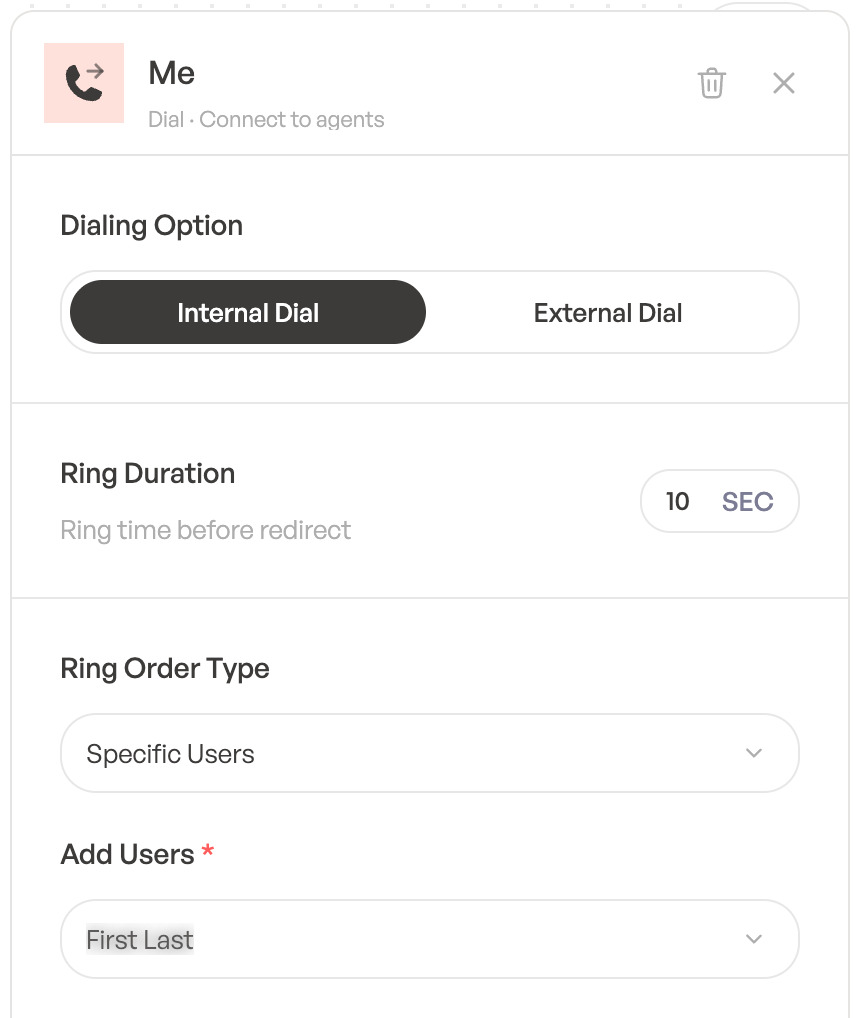
Under Dialing Option, choose Internal Dial to ring people in your workspace, or External Dial to forward the call to a Forwarding Number. Ring Duration sets how long it rings, from 10 to 100 seconds, before the call moves on through If no answer.
With Internal Dial, choose a Ring Order Type:
- Round Robin: one user at a time, starting with whoever has been idle longest.
- Random Batch: a random group of users rings at the same time.
- Specific Users: the users you choose ring at the same time.
- Prioritized: groups of users ring in order of priority.
Let an AI agent answer when nobody can
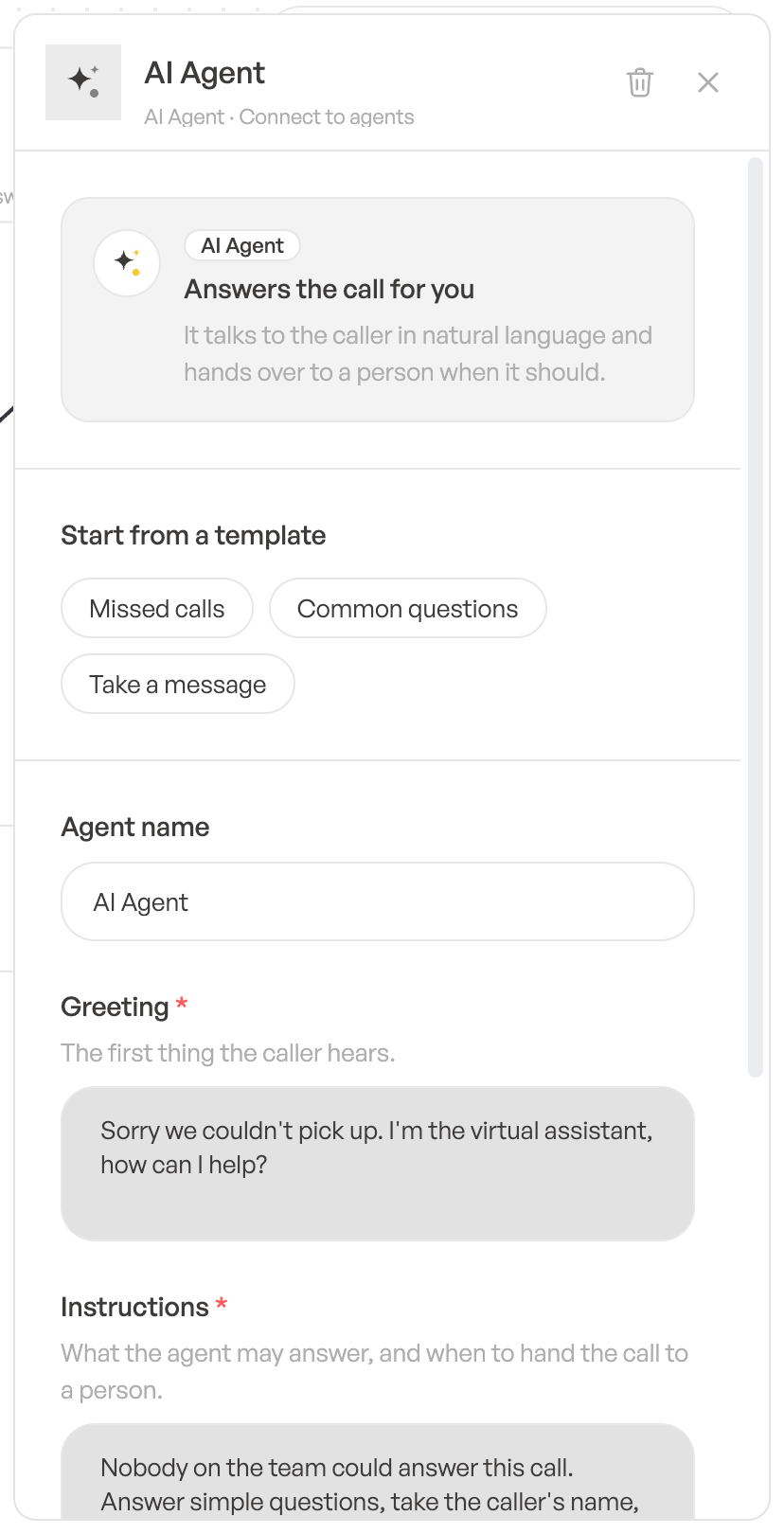
Connect If no answer on a Dial step to an AI Agent, and calls you miss are answered instead of ringing out. Start from a template (Missed calls, Common questions or Take a message), then adjust the Greeting, the first thing the caller hears, and the Instructions: what the agent may answer, and when to hand the call to a person.
The AI Agent has two ways out: Hand Over To Human, for example to ring your team, and If AI Unavailable, for example to voicemail.
Route calls by business hours
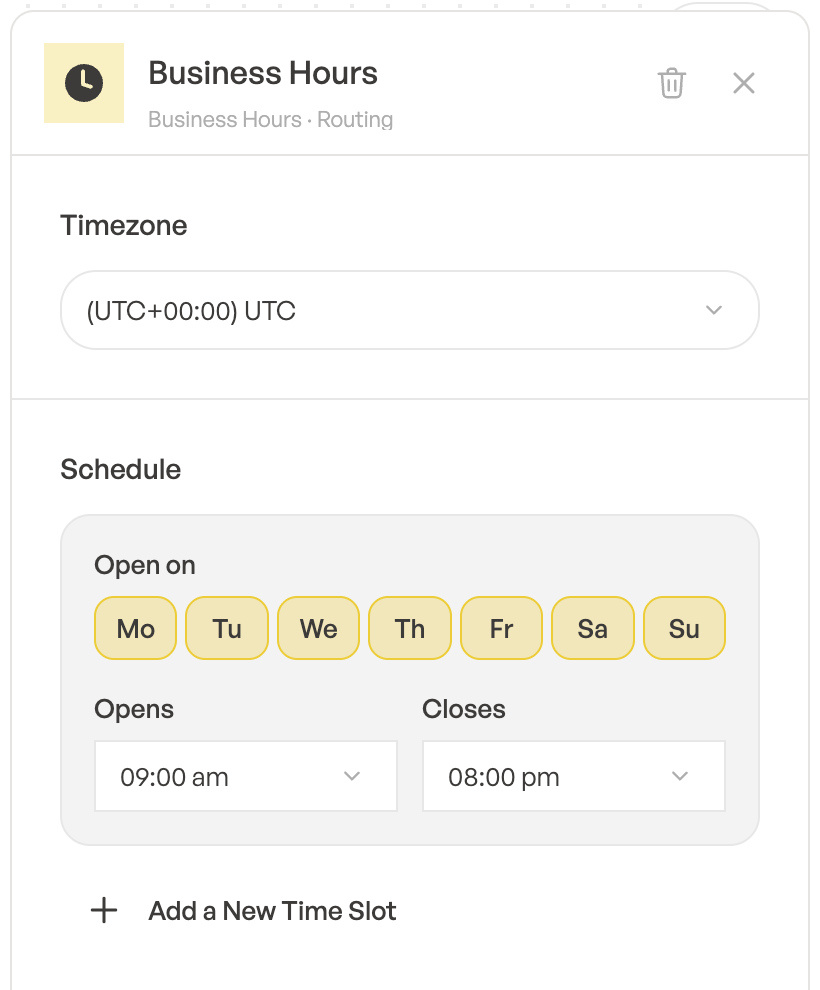
In Business Hours, choose your Timezone. Under Schedule, pick the days in Open on and set Opens and Closes. Click Add a New Time Slot to set different hours for other days. Connect Open and Closed to the steps callers should reach in each case.
Play a message to the caller
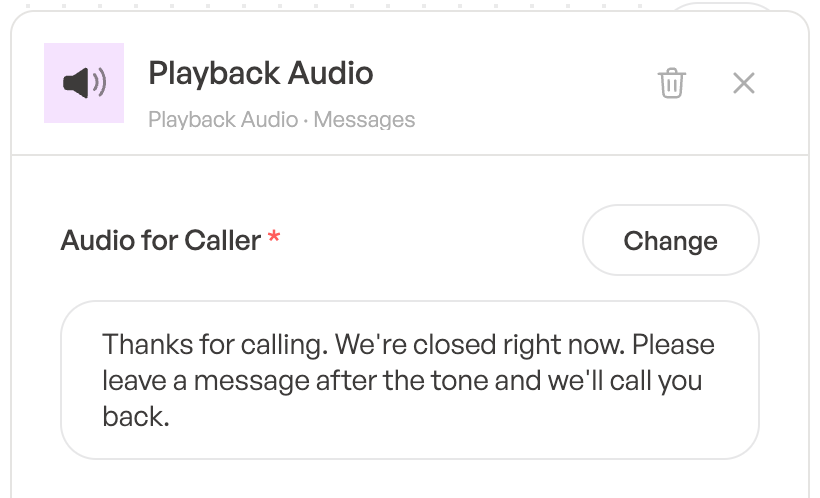
Playback Audio, Menu and Voicemail play the message set under Audio for Caller. Click Set a message and choose Upload File, Record Audio, Text to Speech or Set URL. With Text to Speech, choose the Language and a voice, type the Text Message and click Save.
Save your call flow
Changes take effect only when you save. While you edit, the header shows Unsaved changes. Click Save to apply the flow to the number, or Discard to go back to the last saved version.
A step that isn’t finished shows a warning icon, and Save stays disabled until it’s fixed. Hover the icon to see what’s missing, for example There is no message to play. or No agents are selected to ring.
If you try to leave with unsaved changes, ToCaller asks Leave without publishing? Click Publish to keep your changes, or Leave anyway to discard them.