Creating a ToCaller account takes a couple of minutes. You can sign up with your email address and a password, or with your Google account. Either way, you get your own workspace and a 7-day free trial.
Before you start
- Use a work email address you can open right now. If you sign up with email, we send a verification code to it straight away.
- Temporary or disposable email addresses can’t be used.
- If a colleague has already invited you to their workspace, don’t sign up. Open the link in your invitation email instead; it sets up your account for you. See Invite your team.
Sign up with email
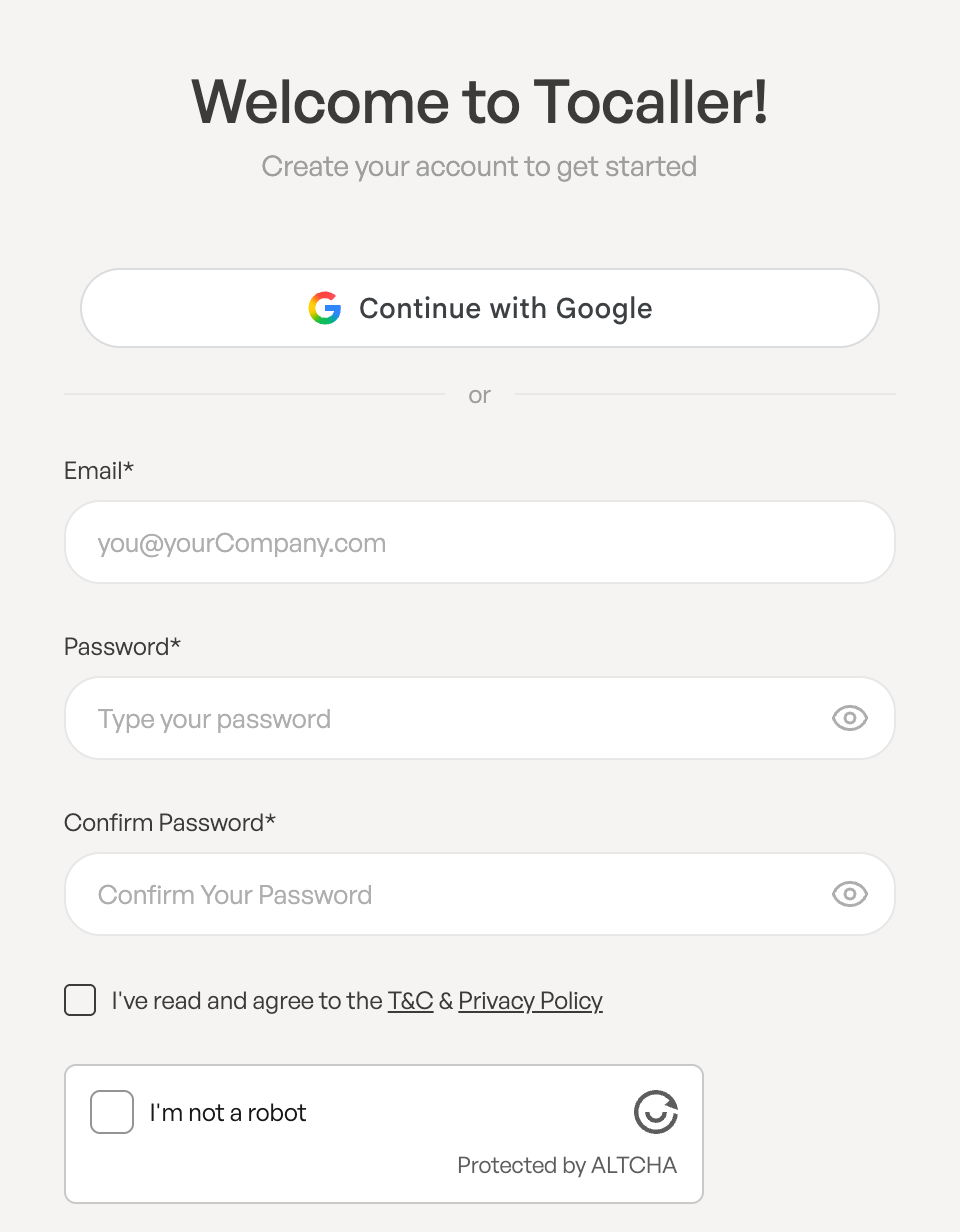
- Open the ToCaller sign-up page. You’ll see Welcome to Tocaller! and Create your account to get started.
- In Email*, enter your work email address.
- In Password*, choose a password, and type it again in Confirm Password*.
- Tick the box to accept the T&C and Privacy Policy.
- Complete the I’m not a robot check. It runs by itself after a moment and changes to Verified.
- Click Start Free Trial.
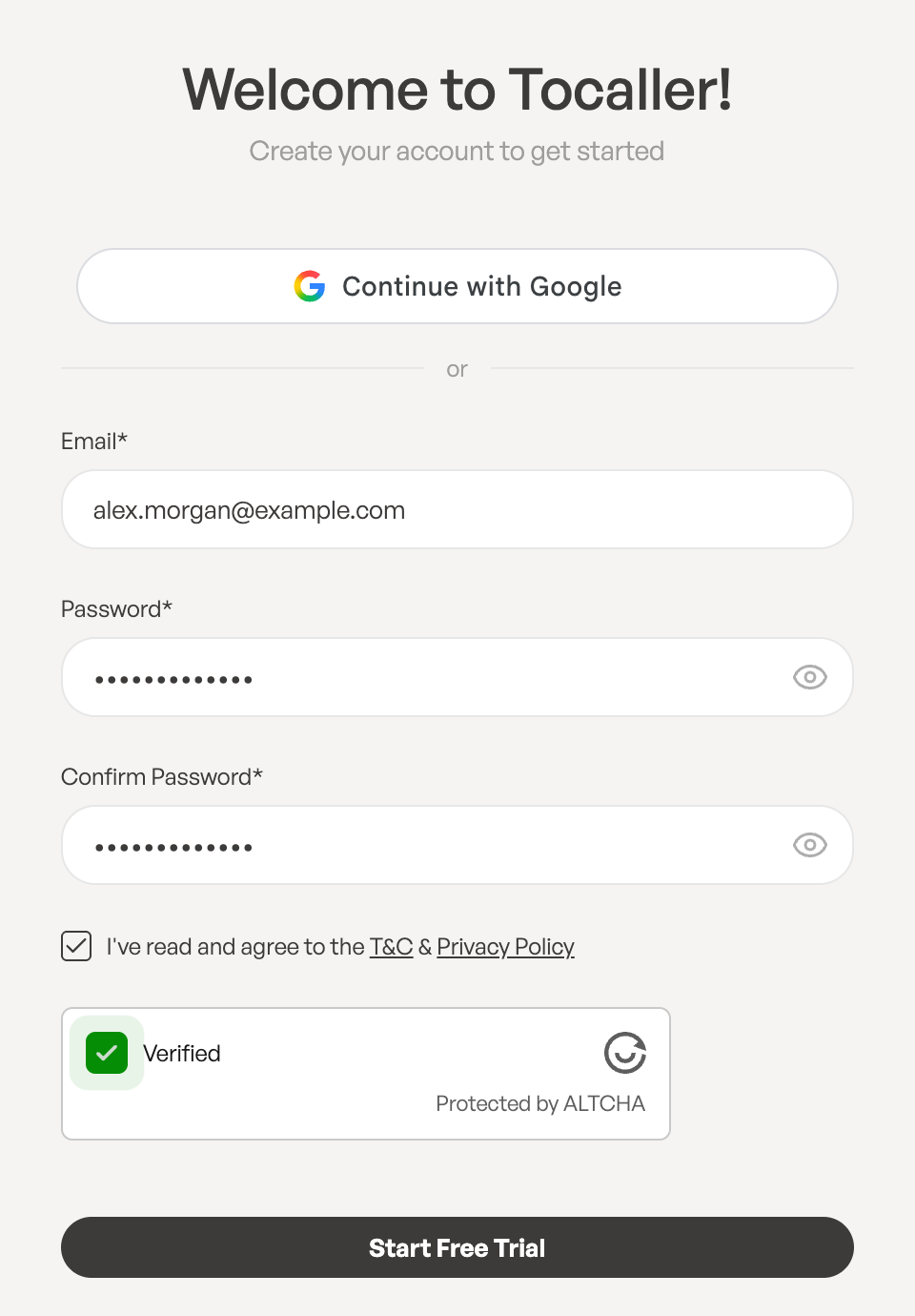
Right after that, ToCaller shows the Verify your email screen and sends you a 6-digit code. Keep this screen open and follow Verify your email with a 6-digit code.
Password requirements
Your password must:
- be at least 8 characters long,
- contain both upper-case and lower-case letters,
- contain at least one number,
- contain at least one symbol (any character that isn’t a letter or a number, such as
!,#or?).
If the password doesn’t meet these rules, you’ll see Must include upper, lower, number & symbol under the field.
Sign up with Google
- On the sign-up page, tick the box to accept the T&C and Privacy Policy first. The Google button only works after that.
- Click Continue with Google and choose your Google account.
Google has already confirmed your email address, so you don’t need a verification code: you go straight to your workspace. Your account has no ToCaller password at first. You can add one later under Edit Profile → Set password if you also want to sign in with email and password.
What you get
- Your own workspace. It’s where your phone numbers, team, contacts and call history live. You can rename it later in workspace settings.
- The Owner role. As the person who created the workspace, you can manage everything in it, including the plan and billing. See User roles and permissions.
- A 7-day free trial. Your whole team can use the workspace during the trial, and nobody is charged automatically when it ends. The trial is given once per account. See Plans, licenses and your free trial.
Common problems
- Disposable email addresses are not allowed. Use your regular work email.
- This email has an open workspace invitation. Someone has invited you already. Open the link in your invitation email to join.
- Please confirm you are not a robot. Wait until the robot check shows Verified, then click Start Free Trial again.
- The Google button is missing. Some browser extensions, such as ad blockers, block it. Turn them off for this page or sign up with email.
Leave a Reply