Your workspace is where your numbers, team, contacts and call history live. Its name and logo are shown to everyone in the workspace.
Who can change workspace settings
- General (name, logo, website): the Owner and Admins.
- Plan and Billing: the Owner only.
Open workspace settings
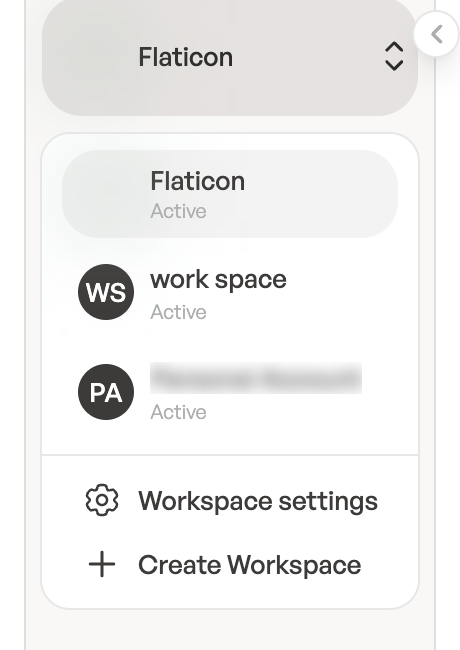
- Click the workspace name at the top of the sidebar.
- Click Workspace settings.
Change the name, logo and website
On the General tab, under Workspace details:
- Workspace name: usually your business name, up to 100 characters.
- Website (optional): must start with
http://orhttps://. - Logo: click Upload logo and choose a JPG, PNG or WebP image up to 2 MB. To remove it, click Delete logo.
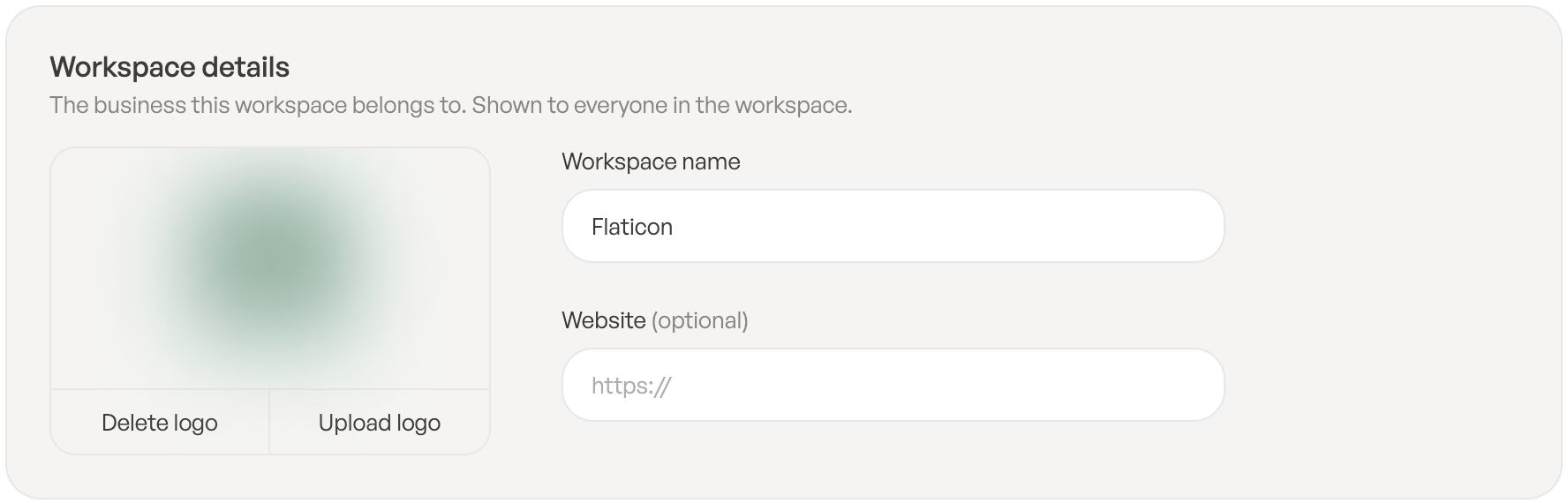
Changes save when you click outside the field. You’ll see Workspace updated. or Logo updated.
Plan and billing
The Plan and Billing tabs are covered in Plans, licenses and your free trial and Manage billing, invoices and payments.
Team members and roles
People and their roles are managed in Users in the sidebar. See Invite your team and User roles and permissions.
Your own settings
Your timezone, ringtone and after-call time are set per person on each user’s page under Call Settings, not for the whole workspace. Your name, picture, password and email are on your profile.
Leave a Reply