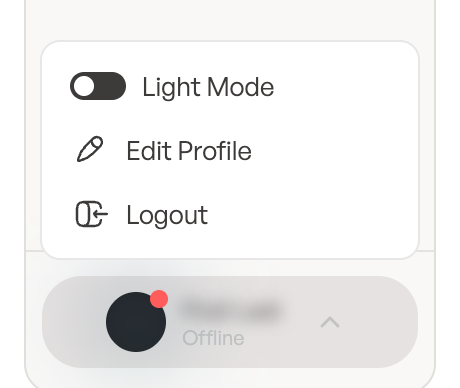
Your profile holds your name, picture and sign-in details. To open it, click your name at the bottom of the sidebar and choose Edit Profile.
Name and picture
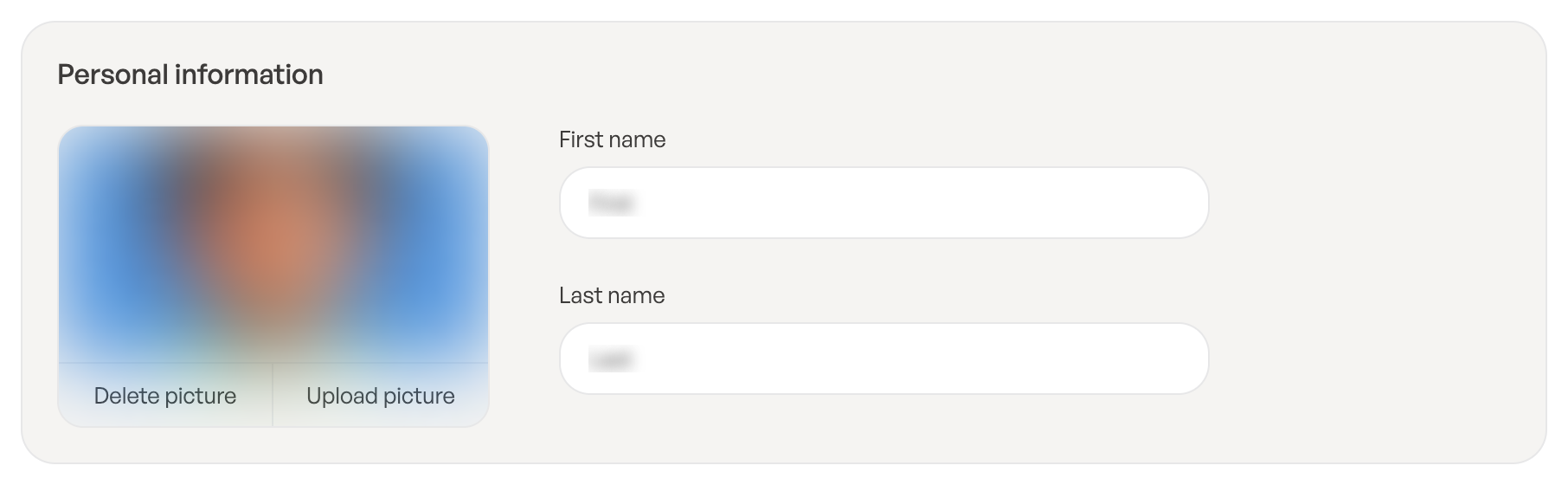
- Under Personal information, edit your First name and Last name. Changes save when you click outside the field.
- To add a photo, click Upload picture. Use a JPG, PNG or WEBP image up to 2 MB. To remove it, click Delete picture.
Change your password
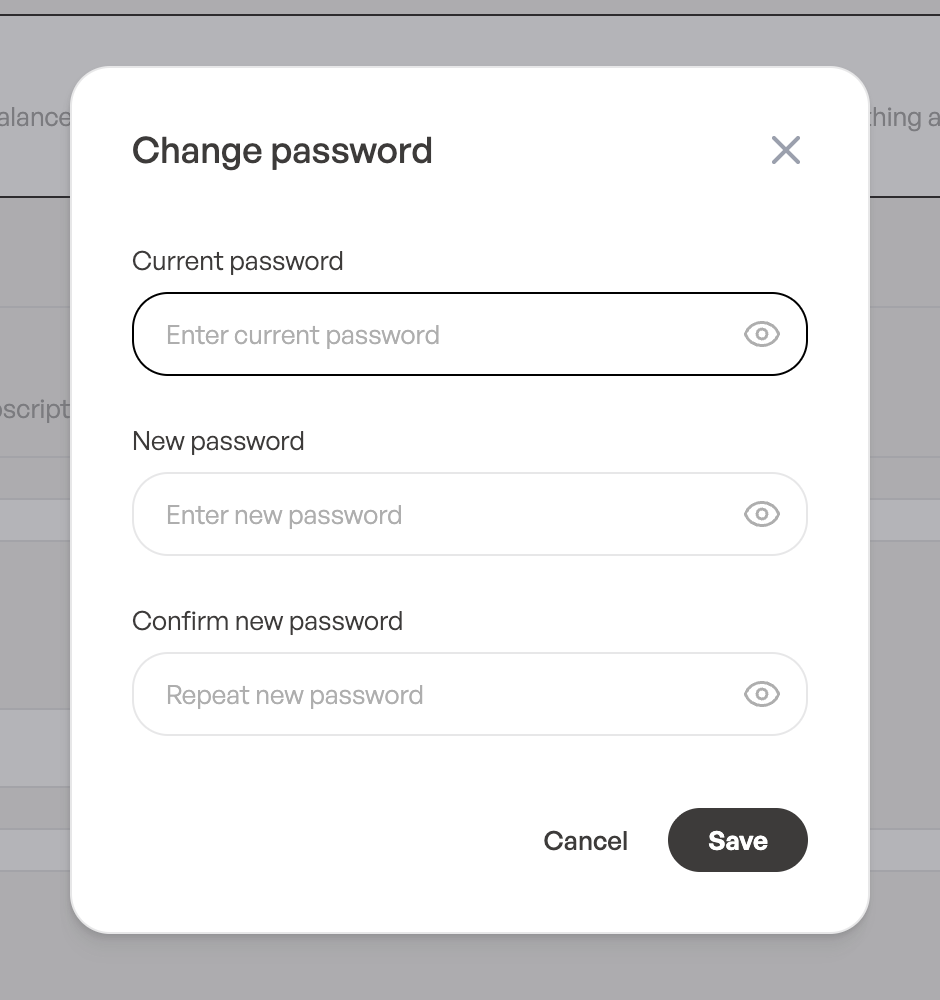
- Under Account credentials, click Change password.
- Enter your Current password, then your New password and Confirm new password.
- Click Save.
You’ll see Password changed. Other devices have been signed out. For security, every other device where you were signed in is signed out.
The new password needs at least 8 characters, upper- and lower-case letters, a number and a symbol.
Signed up with Google? You won’t have a password yet, so the button says Set password and doesn’t ask for a current password. Afterwards you can sign in with Google or with your email and password.
Change your sign-in email
- Under Account credentials, click Change email.
- Enter your New email and your Current password, then click Send code.
- We send a 6-digit code to the new address, with the subject Confirm your new Tocaller email address.
- Enter the code in Code and click Confirm.
You’ll see Your email is now …. From then on, sign in with the new address. The code is valid for 10 minutes and stops working after 5 wrong attempts. If it didn’t arrive, click Send the code again after 60 seconds.
- This email address is already in use. Another ToCaller account uses that address. Choose a different one.
- The current password is incorrect. Check your password and try again, or reset it from the sign-in page.
Your role
Under Roles & Permissions you can see your role in this workspace. You can’t edit your own role; ask an Admin or the Owner. See User roles and permissions.
Leave a Reply