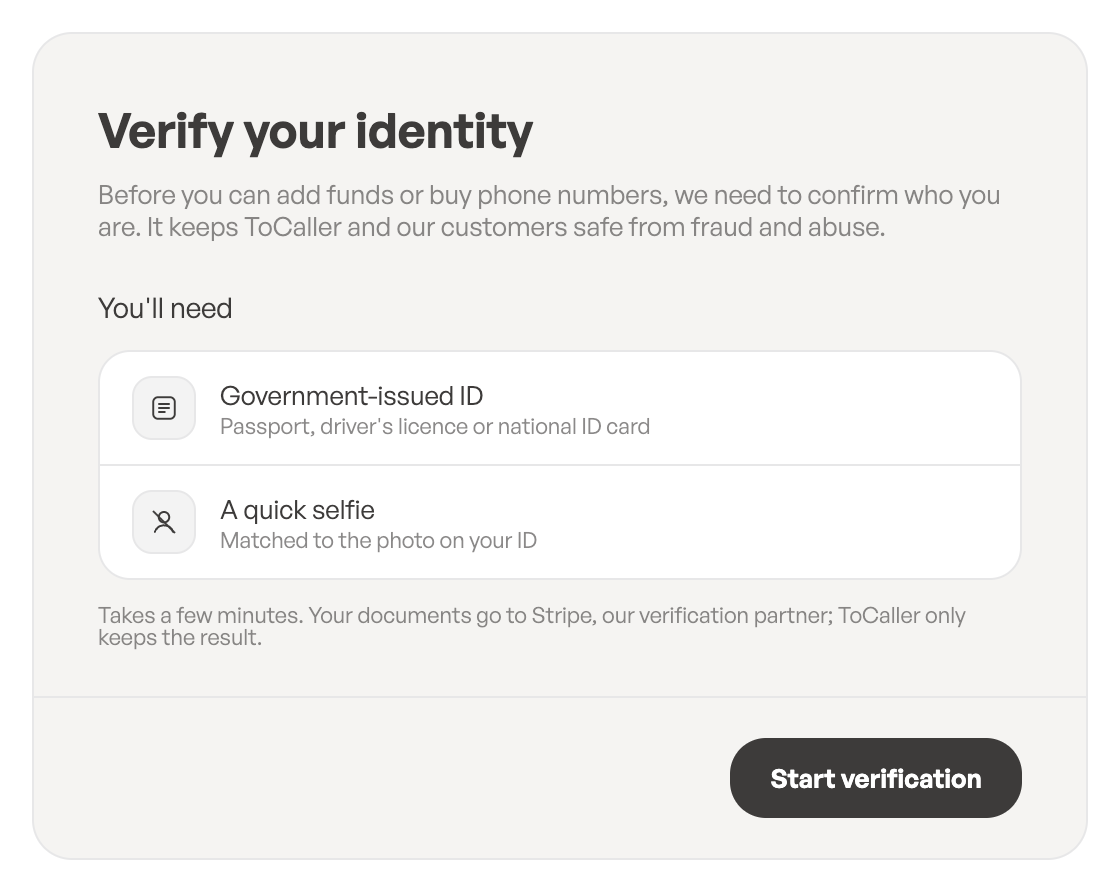
To keep ToCaller and our customers safe from fraud and abuse, we confirm who you are before you can add funds or buy phone numbers. The check is done once, by Stripe, our verification partner, and takes a few minutes.
What you need
- A government-issued ID: a passport, driver’s licence or national ID card.
- A quick selfie: it’s matched to the photo on your ID.
- A phone or computer with a camera.
Your documents go to Stripe. ToCaller only keeps the result of the check.
Start the check
- Click your balance (the green amount at the top of the screen), or click Add funds anywhere in ToCaller. If you haven’t verified yet, ToCaller opens Verify your identity.
- Read what you’ll need and click Start verification.
- Stripe opens. Follow the steps to photograph your ID and take a selfie.
- When you finish, Stripe sends you back to ToCaller.
Check the result
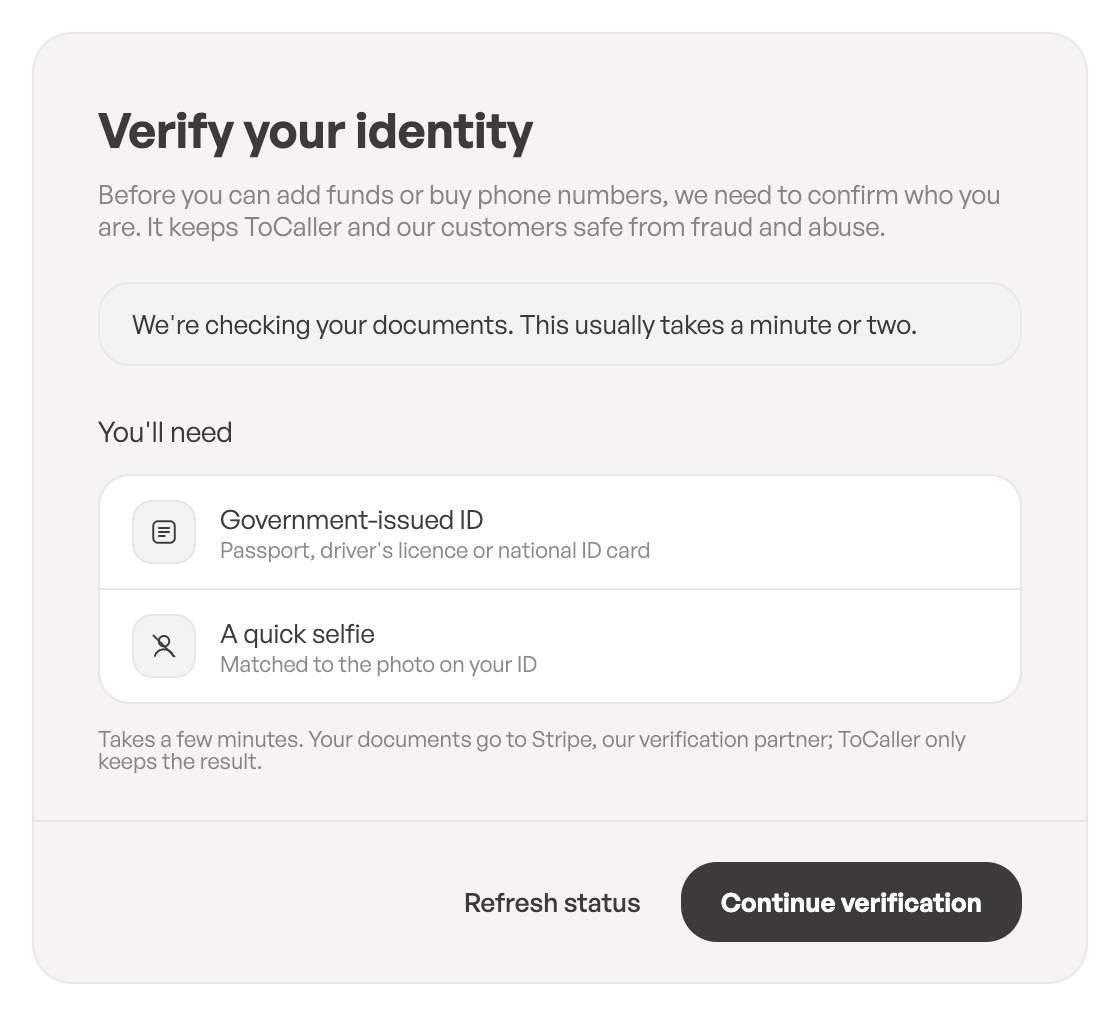
- Checking: you’ll see We’re checking your documents. This usually takes a minute or two. The page updates by itself; you can also click Refresh status. If you left Stripe before finishing, click Continue verification.
- Verified: you’ll see Identity verified and You can now add funds and buy phone numbers. Click Add funds to top up your balance.
- Not verified: you’ll see the reason, or We couldn’t verify your identity. Please try again. Click Try again, and make sure your ID is valid, fully visible and not blurry.
Good to know
- You only verify once. The result belongs to you as a person, not to one workspace.
- If you see Identity verification is unavailable right now, wait a few minutes and try again.
Leave a Reply