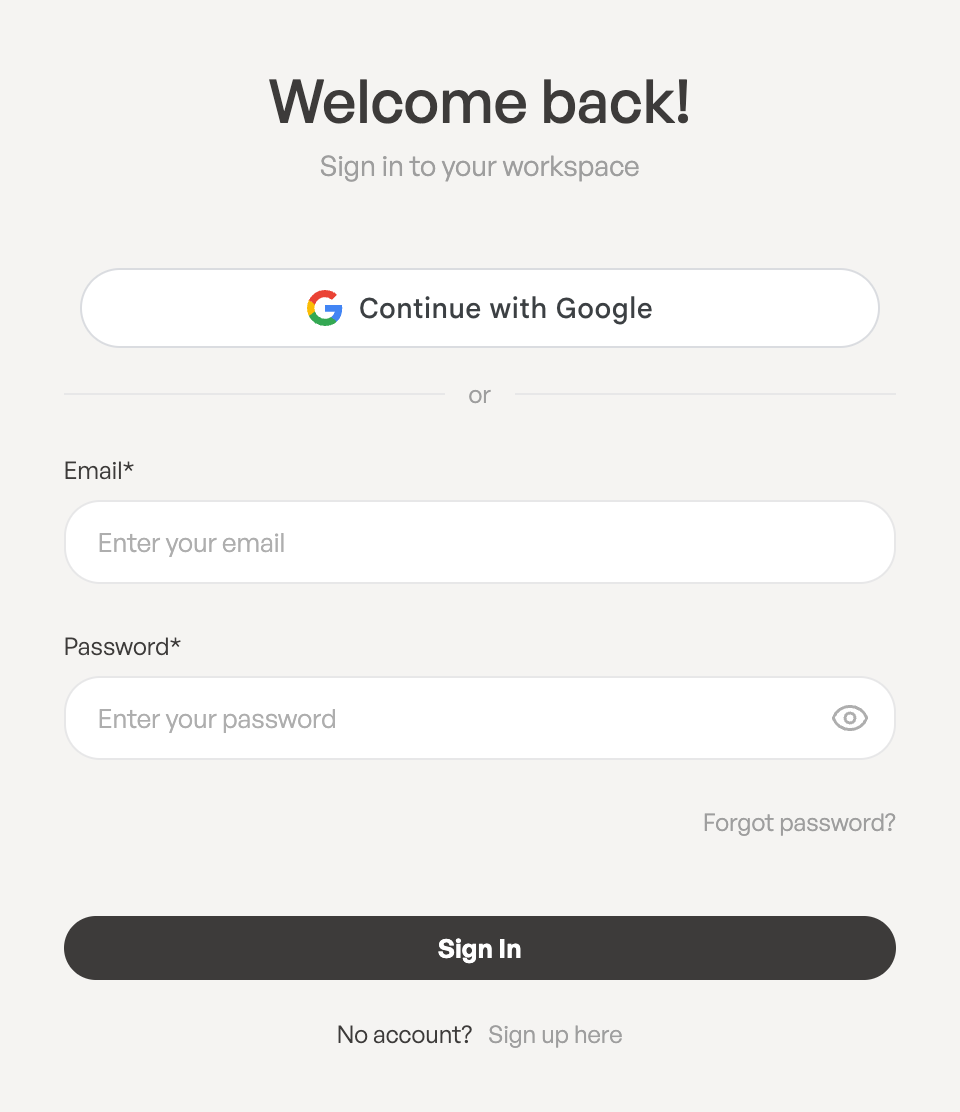
Sign in with the same method you used to sign up: your email and password, or your Google account.
Sign in
- Open the ToCaller sign-in page. You’ll see Welcome back! and Sign in to your workspace.
- Enter your Email* and Password*.
- Click Sign In.
If you signed up with Google, click Continue with Google instead.
- These credentials do not match our records. The email or password is wrong. Check for typos or reset your password.
- Too many login attempts. After 5 failed attempts, wait for the number of seconds shown and try again.
- There is no Tocaller account for this Google account yet. Sign up first, from the sign-up page.
- An account with this email already exists. This address was registered with a password. Sign in with your email and password instead of Google.
Reset a forgotten password
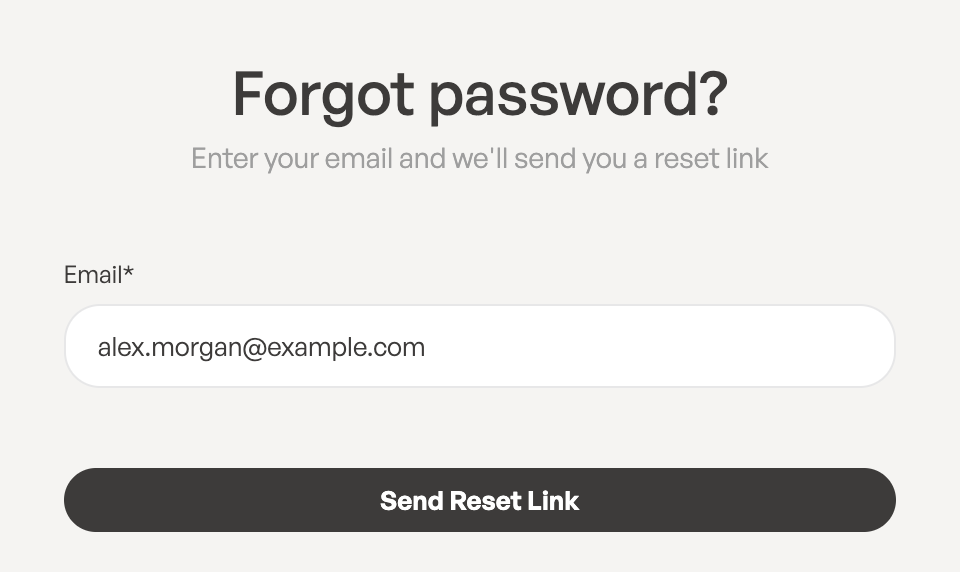
- On the sign-in page, click Forgot password?.
- Enter your email address and click Send Reset Link. You’ll see Check your email.
- Open the email Reset your Tocaller password and click Reset password. The link expires in 60 minutes and works only once.
- On the Reset password page, enter your new password in New Password* and Confirm Password*, then click Reset Password.
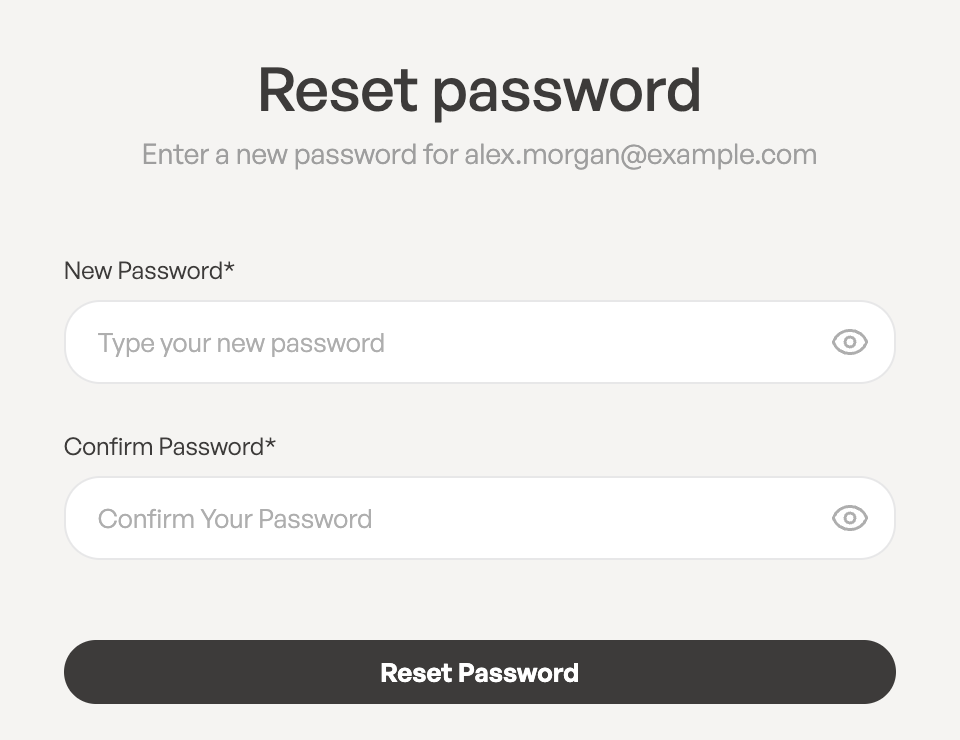
You’ll see Your password has been reset. and can sign in with the new password. For security, resetting your password signs you out on all other devices.
No email? Check your spam folder, and make sure you entered the address you signed up with. For your privacy, ToCaller doesn’t say whether an account exists for an address. Click Resend Link to send it again.
The new password must follow the same rules as at sign-up: at least 8 characters, upper- and lower-case letters, a number and a symbol.
Signed up with Google and want a password?
Use Forgot password? with your Google email address, or, once signed in, open Edit Profile and click Set password. After that you can sign in either way.
Leave a Reply